Some Treasury call centers and web platforms will be temporarily unavailable during the November system upgrades.
Review the Outage List


Respond to a Third-Party Access Request
Respond to a Third-Party Access Request
Step by Step Guide for Responding to the Request
-
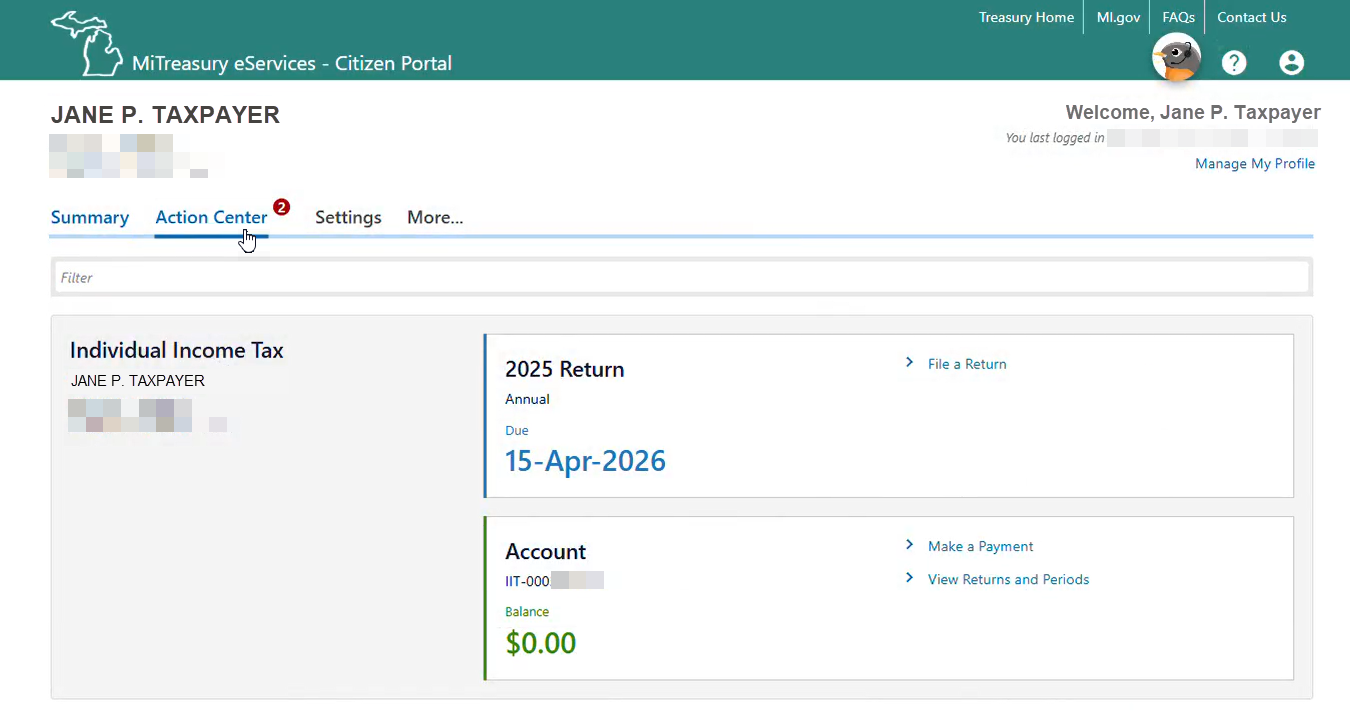
Go to the Action Center page
From the MiTreasury eServices – Citizen dashboard (after logging in to the portal and connecting to your tax account), use the Action Center link to go to the Action Center page.
-
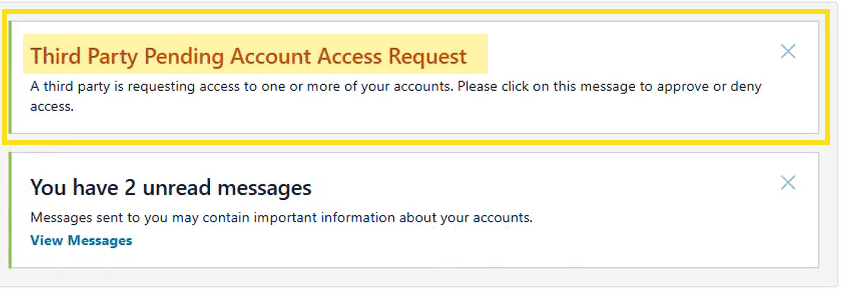
View the Pending Access Request Message
In the Action Center, use the Third Party Pending Account Access Request link to view the request.
-
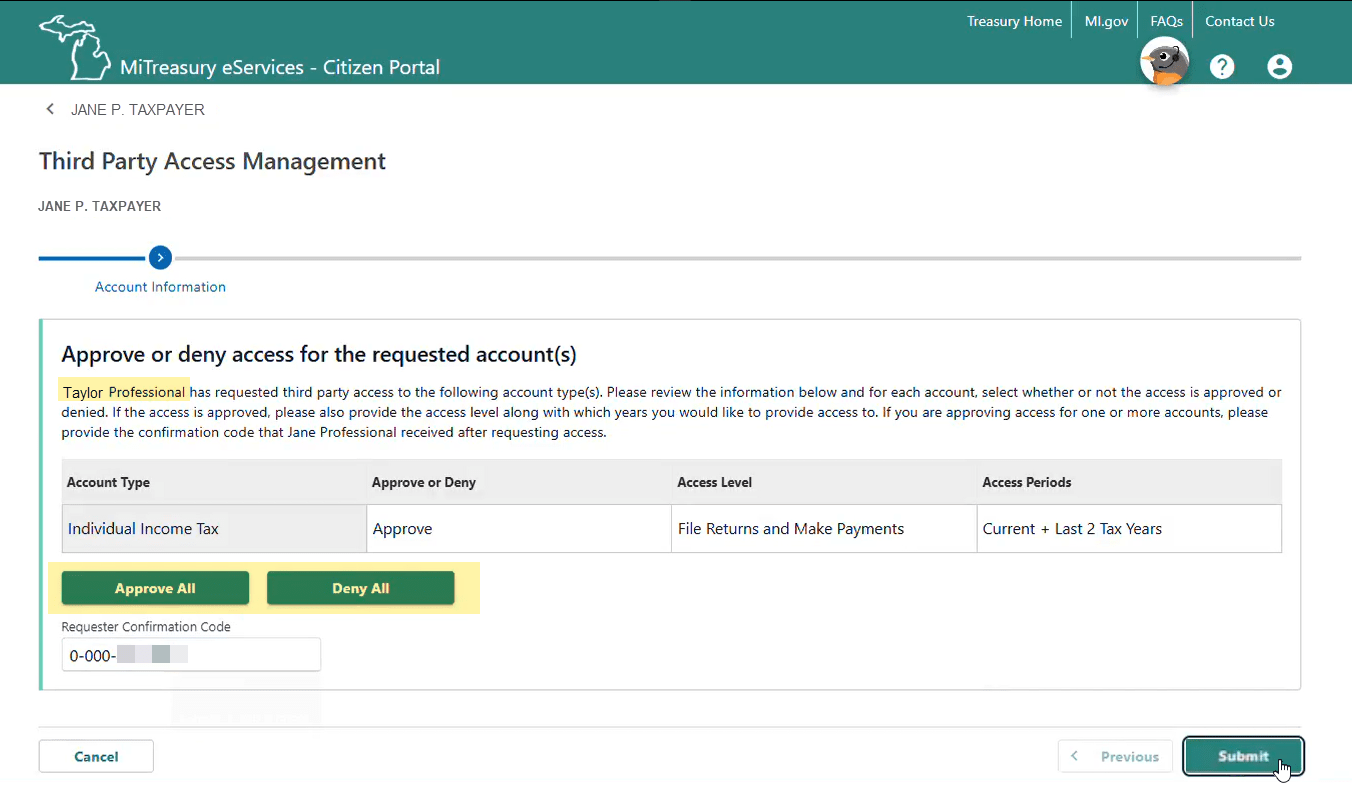
Respond to the third-party access request
Identify the requestor and their requested access to your tax account online.
If you decide to:
- Reject the requestor’s electronic access request:
- Use the Deny All button.
- Accept the requestor’s electronic access request:
- Enter the confirmation code provided to the requestor when they made the request.
- Use the Accept All button.
Use the Submit button to send your decision to Treasury.
-
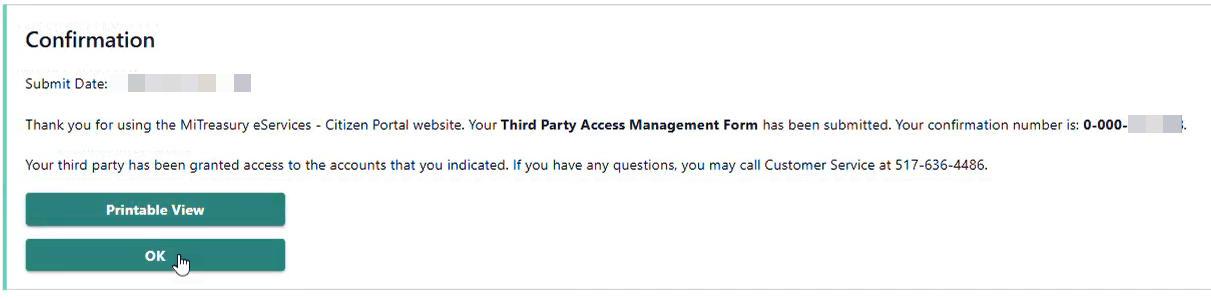
Successful confirmation
You will receive a confirmation number. Congratulations! You have completed the request.
Use the OK button to return to the dashboard.


