Requestor User Guide

The MSP Public Records Request Portal is intended for members of the public to request records from the MSP. If you represent a stage agency, criminal justice agency, or government entity, and are requesting records for an official government purpose, please contact MSPRecords@michigan.gov before utilizing the Public Records Request Portal.

Contact the Records Resource Section at MSPRecords@michigan.gov or 517-241-1934 for assistance.

MiLogin Account

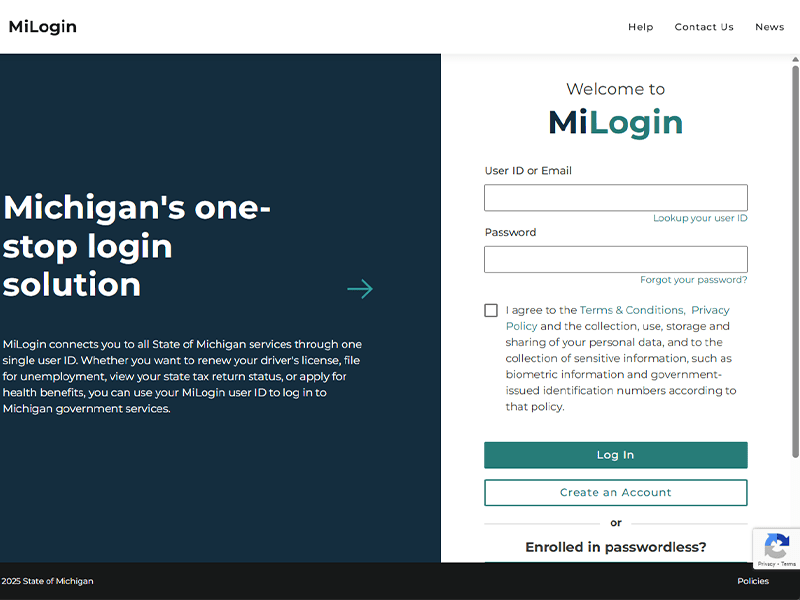
The Michigan State Police (MSP) Public Records Request Portal can only be accessed through the MiLogin website. A MiLogin account is free to create and provides you with access to a variety of State of Michigan applications. The portal is accessed through any state approved browser at MiLogin.michigan.gov.

If you already possess a MiLogin account, enter your User ID and Password and select “login”.

If you do not have an existing MiLogin account, select the “sign up” button to create a new account. Please do not create a new MiLogin account if you already have one to access the following online services: MDHHS MI Bridges, DNR eLicense, MDHHS myHealthButton, MiPage, Michigan Web Account Manager (MiWAM) or Pure Michigan Talent Connect (PMTC). Please use your existing user ID and password from those systems to log into the MiLogin portal.

It is easy to reset your forgotten MiLogin password if you follow the appropriate registration steps and provide your contact information. If you’ve misplaced or forgotten your MiLogin ID, and you provided your email during the initial registration, you can always locate it using MiLogin self-service features. If you’re locked out from your MiLogin account you can call 877-932-6424 for assistance. For other questions about MiLogin, you can select the “Help” in the top right-hand corner.

Please note, the MSP cannot reset your password or make changes to your account. 

View image at larger size
MiLogin home screen.

Adding the Public Records Request Portal

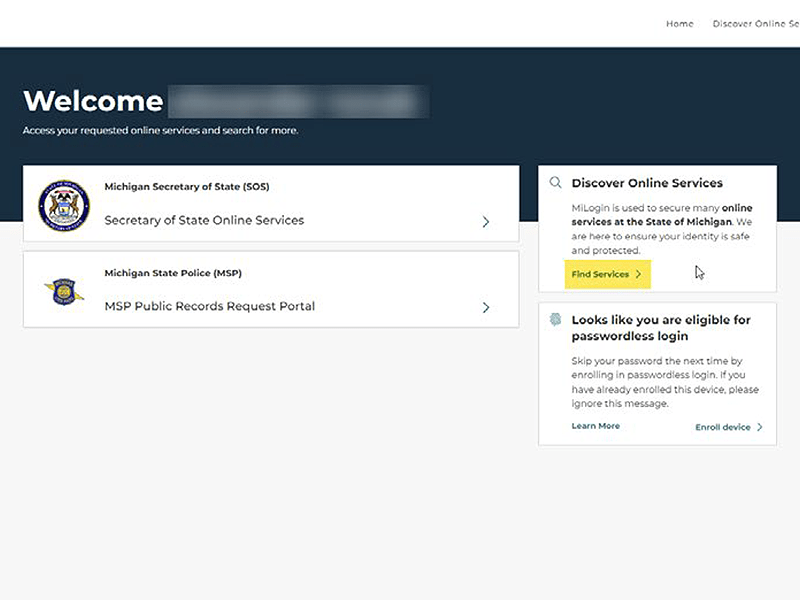
If this is your first time utilizing the Public Records Request Portal, you need to add the MSP Public Records Request Portal to your dashboard. Once requested, the application will appear on your dashboard each time you login. If necessary, complete the following steps:

  • Select the “Find Services” button in the menu to the right. 
View image at larger size
Find services.

Search for the Portal

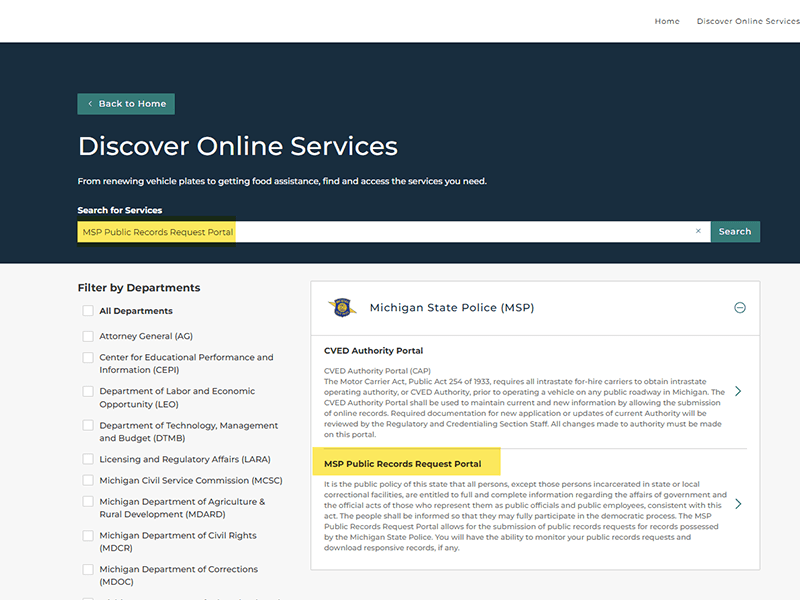
  • Search “Michigan State Police (MSP) in the search bar at the top. Select the MSP Public Records Request Portal link, which will appear below the search bar.
  • Read the Terms & Conditions and select “I agree to the terms & conditions”, then select “Add Service”. If you do not agree to the Terms & Conditions, please visit Michigan.gov/FOIA-MSP for additional submission options.
  • You will be asked to verify a phone number and an email address associated with your account. Once completed, the application request will be automatically approved. You may now access the application through your MiLogin account.
View image at larger size
Screenshot of discover online services screen with search box and MSP Public Records Request Portal highlighted.

Submitting a Request

To submit a request, select the MSP Public Records Request Portal link to launch the application. Select “Launch Service”.
View image at larger size
MSP Public Records Request Portal.

New Request

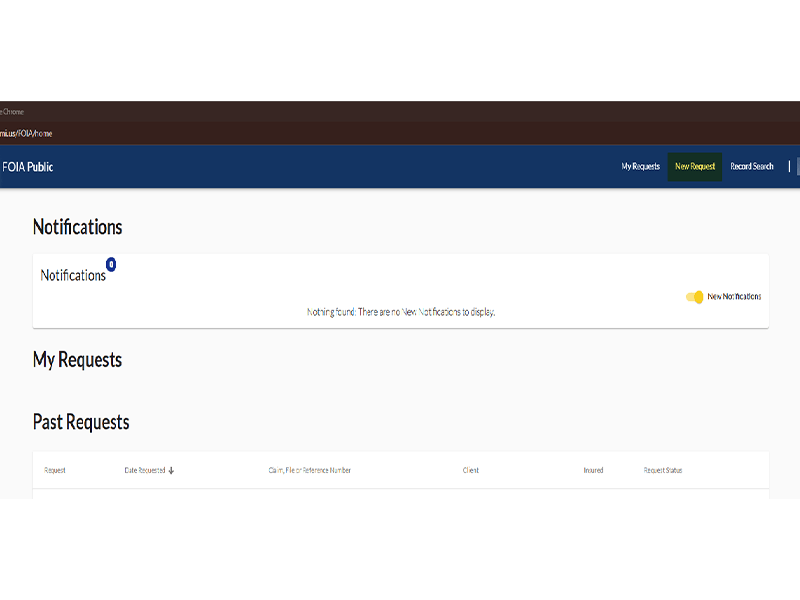
Select “New Request” in the upper, right-side of the screen.

View image at larger size
Notifications screen.

Enter New Request Information

The application will guide you through submission of your request. The first screen will cover requestor information. Please complete as many fields as possible. Requestors must provide their first name, last name, email, and address. Once all required fields have been completed, the “next” button will become active. Select “next” to move to the second screen.
View image at larger size
New request.

Select the Type of Record Requested

The next screen covers the types of record being requested. Please select the type of record you are requesting. Use the “other” checkbox and text field to request records not commonly requested. Once all the required fields have been completed, the “next” button will be available to continue to the next screen.

Please note that fees are charged pursuant to Section 4 of the FOIA based on the estimated & actual costs to process the request. Requests seeking a large volume of records and/or video records (in-car & body-worn camera video) typically charge a fee based on the labor necessary to search for, gather, review, and redact responsive records. These requests may take longer to process than more specific requests seeking specific records from a narrow period of time.

View image at larger size
New request.

Add Additional Information

The third screen covers additional information which will assist the MSP in responding to your request. Please complete as many fields as possible with as much detail as possible. Select “submit” to finalize the submission. Once you click submit you will no longer be able to edit your request. You can select “back” to review the previous screens before submission. 
View image at larger size
New request - additional information.

Tracking Your Request

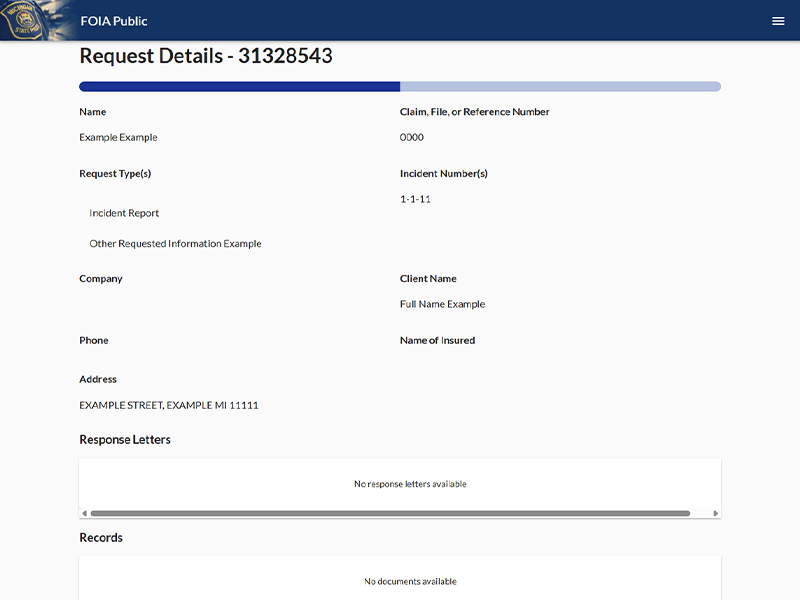
Your request can be tracked on your dashboard. You can view the details of your open request by selecting Request Details at the bottom right-side of the request card. Completed requests will appear under “past requests”
View image at larger size
Notifications and requests.

Viewing Letters and Records

Response notices and responsive documents will be available on the portal. They will not be emailed to you. Be sure to scroll down and look for response notices below “Response Letters” and records below “Records”. To download any letters or records available, select the download symbol to the far right (pictured below).

Download.

If your request is still open, the letters and responsive records will be available by selecting “Request Details” in the bottom right-side of the request card.

If your request is complete, the letters and responsive records will be available under “past requests”. Responsive records that exceed the technological limits of the system, such as video, audio, or other record types with large file sizes will be mailed on CD, DVD, or flash drive to the address provided at the time of the request, after receipt of payment, if applicable.


View image at larger size
Request details.