

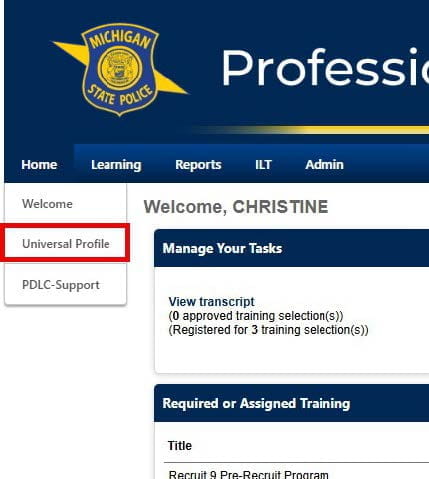
- From the PDLC "Home" dropdown" menu, select your "Universal Profile".
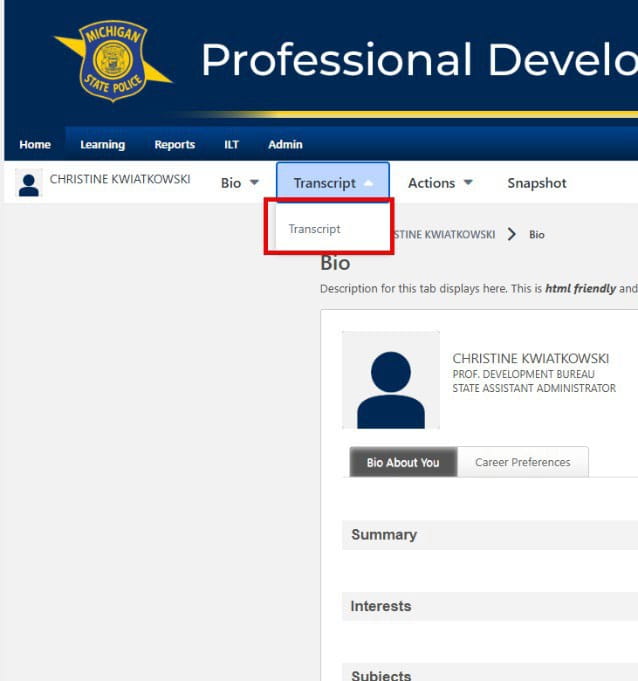
- Select your "Transcript" from the dropdown menu.
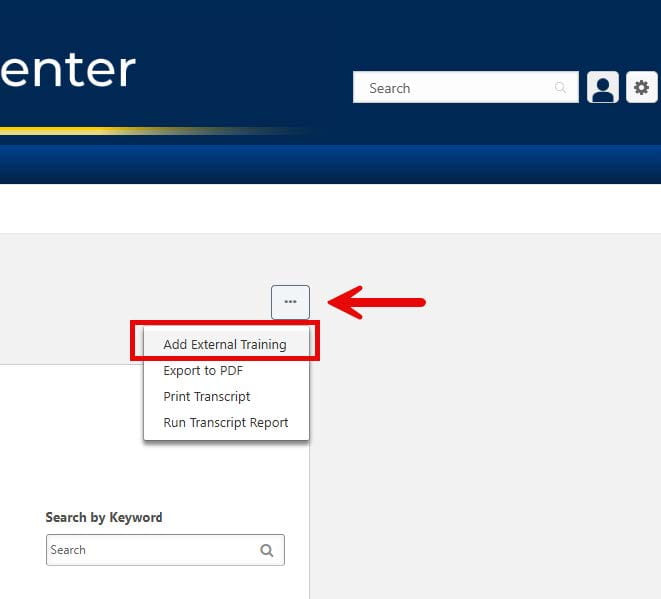
- Select the ellipses in the upper, right corner of your transcript. Select "Add External Training".
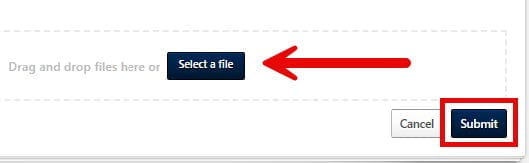
- Fill out the form and click "Submit" in the lower, right corner of your screen. Note that required fields are denoted with a red asterisk. Please be sure to add your certificate.
- Upon return to your transcript, you must click "Mark Complete" for that certificate.

- Complete steps 3-5 for all certificates your would like to upload.
Unsupported Browser Detected
The web Browser you are currently using is unsupported, and some features of this site may not work as intended. Please update to a modern browser such as Chrome, Firefox or Edge to experience all features Michigan.gov has to offer.
Supported Browsers