
The web Browser you are currently using is unsupported, and some features of this site may not work as intended. Please update to a modern browser such as Chrome, Firefox or Edge to experience all features Michigan.gov has to offer.
CVED Authority Portal (CAP) Instructions
CVED Authority Portal Instructions
MiLogin Account
Visit milogin.michigan.gov and select "Create an Account" on the bottom right side of the screen or if you have an account, enter your User ID and password, and click "Log In".
Login credentials from ICARS will not transfer to this system, a new login must be created.
Follow the prompts to create a user ID and password and once you have an established account with MiLogin, you can log in.
You will be directed to your MiLogin dashboard.
Once access is granted, the dashboard will show all the programs you have requested access to.
Adding the CVED Authority Portal
On the MiLogin dashboard, click on "Discover Online Services" on the top right.
Select Michigan State Police (MSP) in the list of departments.
Click on "CVED Authority Portal" under "Michigan State Police (MSP)".
Agree to the terms & conditions and select "Add Service".
Submitting an Application Through the CVED Authority Portal
You can now click on "Launch Service" to be directed to the portal.
In the portal, select from the options to Create a Carrier (for a new carrier) and Claim an Existing Carrier (for carriers with an ICARS login).
Existing carriers should have received an email with a PIN to log into the system for the first time. Enter your carrier name and PIN and select Claim Carrier.
Enter the carrier mailing address details.
Enter the carrier business details.
Enter the primary contact details.
Select which application type you need. New will be for new carriers, renewal will only appear during the renewal period, and request will be for any modifications to an account (adding vehicles, 72-hour permits, etc.)
If a New Application is selected, pick between General Commodities and Household Goods.
Enter the business details.
Enter the operation details.
Household Goods Carriers traveling more than 40 miles must also provide proof of complying with a Tariff.
Documentation may be attached at this time or can be attached later.
All vehicles requiring a decal must be entered in the vehicle section.
Enter the vehicle information.
Once all vehicles have been entered select Next.
Review the application.
If all information is correct, select Save and Add to Cart.
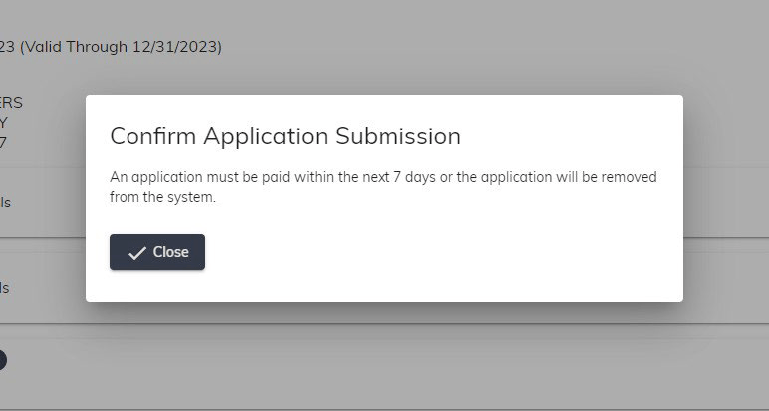
Confirm Application Submission.
Select Review & Checkout in the Cart section at the top right of the page.
Select Checkout.
Read the acknowledgement message and select agree, then Continue Checkout.
Continue Checkout will redirect to Michigan's Central Electronic Payment Authorization System (CEPAS).
Select the method of payment and then click Next.
Enter the payment information.
From the Payment Confirmation screen a receipt may be downloaded. Select Return to Home when finished.
Example of receipt: