
The middle panel holds the map and tools to use within the map.
In the top left corner of the map, you'll find four tools to interact with the map.
This is highlighted in yellow in the top left map corner. From left to right your button options are:
- Search: This lets you search for a street address, county name, etc.
- Configure layers: Display a list of layers and symbols in the map. Also includes the ability for users to turn them on or off.
- Basemap options: Lets you choose what your background map looks like. Choosing an option will automatically switch it on the map.
- Measure tool: Measurement tools for measuring area and distance.
In the bottom right corner, you can find the map navigation tools.
This is highlighted in yellow in the bottom right map corner. From top to bottom your button options are:
- Find my location: This will zoom the map to your computer's current location. This requires granting permission to your computer to access its location.
- Plus and Minus: Can be used to zoom in or out of the map.
- Alternately, on your computer, use your mouse wheel also lets you zoom in and out, while left clicking and dragging lets you pan around the map.
- If you're on a mobile device, use the pinch-to-zoom functionality.
- Default map view: This takes you back to the original extent (zoom) of the map.
To learn more about a specific feature on the map click on the feature of interest, and a pop-up will appear displaying attributes.
- To close the pop-up, click the "X" or click elsewhere in the map.
- For maps with lots of overlapping or close features, it will show "1 of *" in the bottom right of the pop-up. This means you can use the < and > arrows to click between pop-ups.
To view the data within the map as a table click on the arrow at the bottom of the map.
The attribute table will pop up displaying more information about each data feature. Found within the table are tools that can help you simplify the table to find exactly what you need.
MiEJScreen Tool Highlight: Search
Like many map tools, you can search for a street address. You can also search for a place or business name.
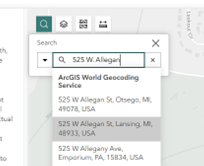
The search can give results outside of Michigan, and tries to predict what you want to search. It can help to confirm “MI” is in the address before entering or selecting a predicted search result.
You can also search for a location by coordinates. You get the best results on the first try if you enter it this way:
- longitude number
- a comma
- a space
- latitude number
An example coordinate search for a location near Flint would look like this: -83.7, 43
MiEJScreen Tool Highlight: Basemap options
By default, MiEJScreen opens on a plan gray basemap with minimal boundaries and labels. This map shows the color symbology for the MiEJScreen scores very well.
However, it does not show any other features or landmarks that could help for some uses of MiEJScreen.
To get a general sense of what type of area or neighborhood surrounds your location of interest while viewing MiEJScreen score data, try selecting a basemap with “imagery hybrid” or “street map” in the name.
