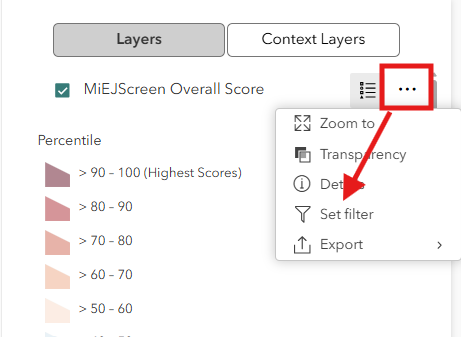
- Use the three horizontal dots for the layer you want to filter. Select “Set filter” from the list of options.
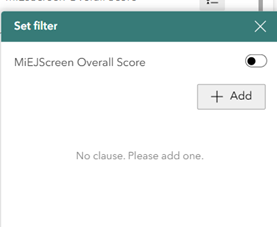
- In the “Set filter” tool, use the “+Add” button, and select “clause.” This brings up a place to enter your filter options.
- In the first dropdown list, select the data column to filter.
- Example: filter by MiEJScreen percentile scores:
- Select the “Percentile” that follows directly after “MiEJScreen” in the list of data columns.
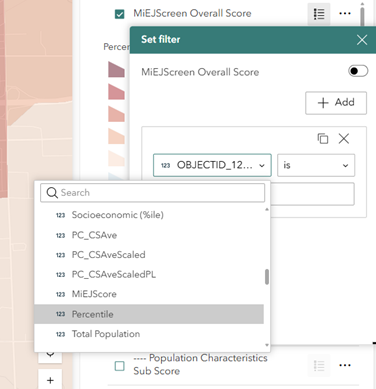
- Select the filter operator (“equals,” “is greater than,” etc.) from the dropdown list.
- Then enter the value you want the operator to filter for.
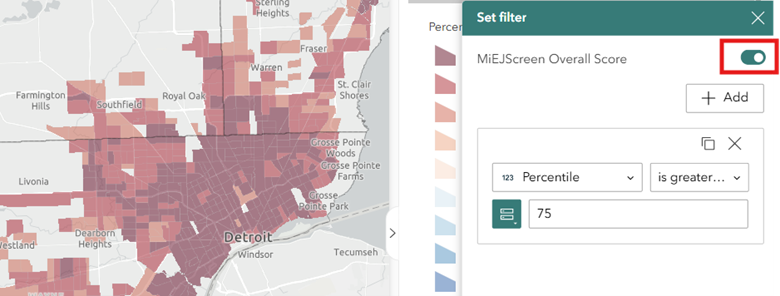
- Example: filter MiEJScreen Overall Score for census tracts with scores above 75th percentile:
- select the “is greater than” operator;
- enter “75” in the third field.
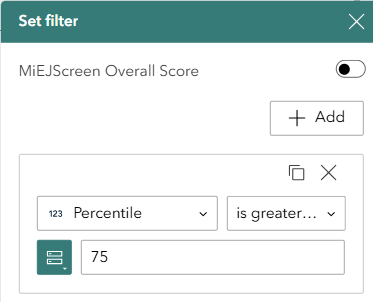
- Example: filter MiEJScreen Overall Score for census tracts with scores above 75th percentile:
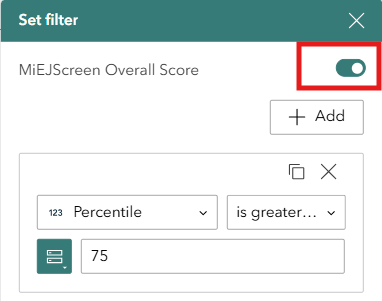
- Use the toggle to turn on the filter view based on the options you just set.
Example filter results Layer view
Detroit area with filter view of MiEJScreen Score >75th percentile toggled off:
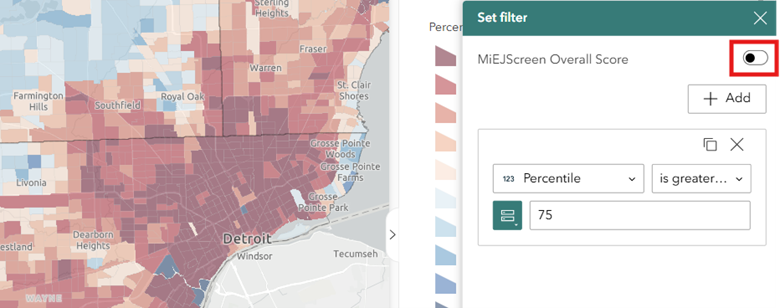
Detroit area with filter view of MiEJScreen Score >75th percentile toggled on: