

The MiSTAR application also has multiple additional features to enhance various workflows and functionality. These include the Area of Review (AOR) form generation, Landing page user configuration options, and interactive charts. The AOR tool is described in a separate document.
1.E.1 Landing Page User Configuration
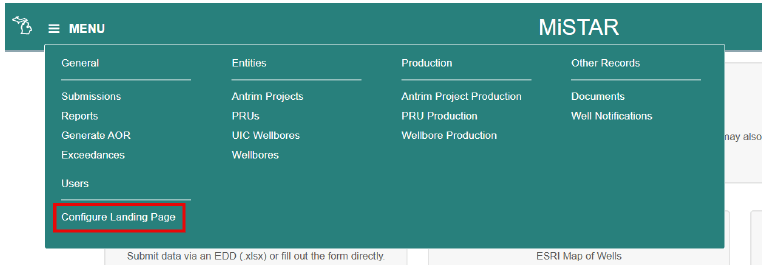
MiSTAR now includes a landing page with a variety of boxes/links to pages both within and outside of the application. All users can adjust their landing page by reordering and turning on or off the visibility of each link. To configure the landing page, select the MENU dropdown in the upper left of the application and select the “Configure Landing Page” option. Then click the Edit button.
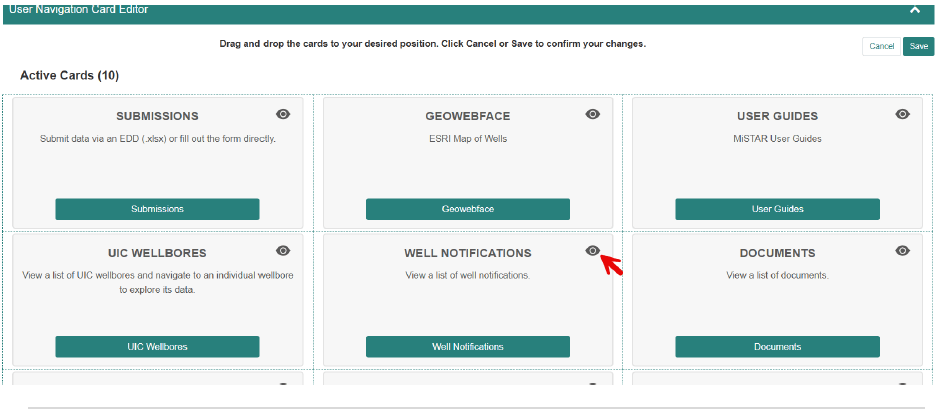
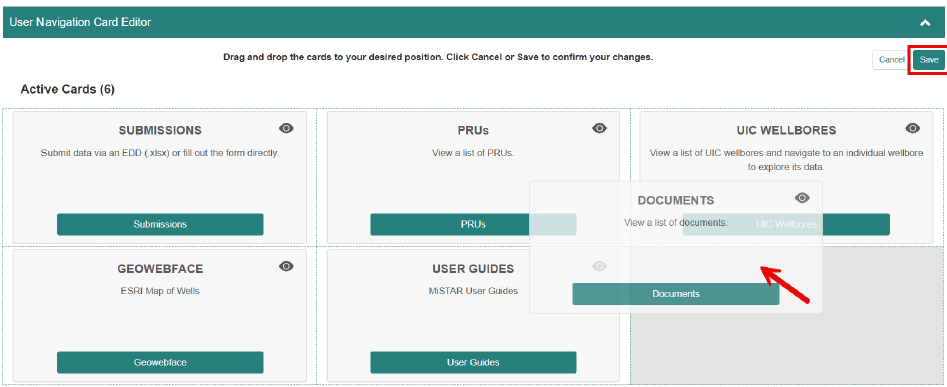
Click the View icon to change the visibility of a link. The box with the link will move to the “Inactive Cards” section at the bottom of the page. Click the View icon again on an inactive link to make it visible again. Change the order of the boxes by dragging and dropping each box.
Confirm your changes by clicking the Save button. This saves the changes in the cache of your browser. If you need to clear your cache you will need to redo the configuration.
1.E.2 Interactive Charts
Interactive charts have been added as a button to the list pages for PRU Production, Antrim Project Production, and Wellbore Production to display production volumes over time. These charts have been designed to adjust according to any filters selected on the page. By default, all the production types available for a given production entity display when a chart is initially loaded.
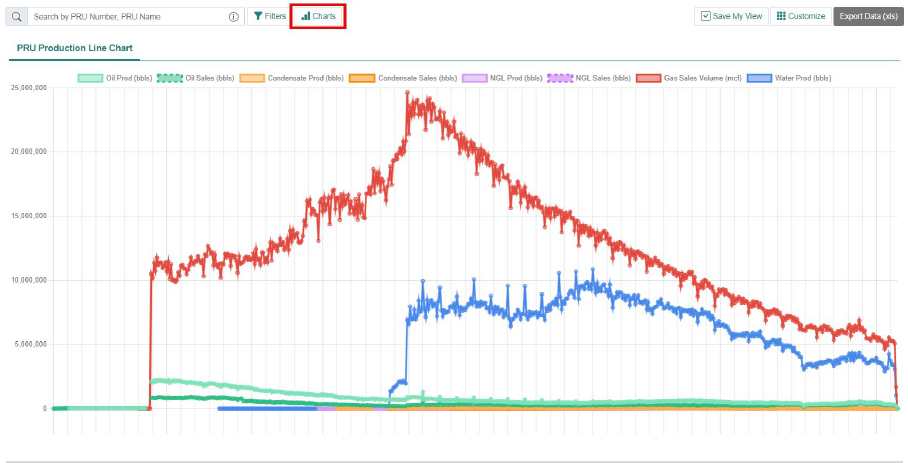
Click on the production type in the legend at the top of the chart to remove that type from view. The icon will display with a strikethrough to indicate it is turned off.

Use the filters to adjust the dataset used to generate the chart. These will allow filtering by PRU number, PRU name, Report Date, and Operator etc.
