For full details with illustrations, diagrams, and examples, please refer to the individual form guides.
There are five steps to submit data using a form template:
- Log in to MiSTAR
- Download/Save the form template to your device
- Enter data on the template
- Upload the completed template
- Validate and submit form for review
Steps:
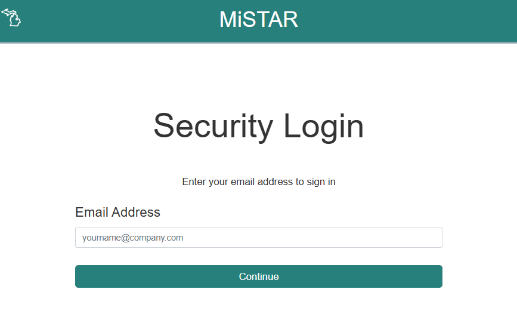
- Login in to MiSTAR
- Download the Form needed as an Excel template (or use manual entry).
- Navigate to the Submission page.
- On the Submission page, click Create Submission, select Form Type, and click the Download EDD Template link, saving the template to your device.

- Note that certain forms may also have the option to fill out a blank form directly into the website while others are only available as manual entry. Application Permit to Drill is a manually entered submission.
- Prepare the template.
- Fill in the header section of the template/form
- Enter data for reporting into the detail section of the template.
- Refer to the detailed instructions within each form user guide.
- Save template as either an .xlsx or .csv file.
- Upload/Submit the completed EDD template.
- On the MiSTAR Submissions page click Create Submission button at the top right, select your form type, browse to select your file, and click Create button.

- Optionally: Fill in Form Manually.
- For certain forms or situations, it may be appropriate to fill out the form manually instead of using a template.
- Validate and verify submittal of the template or manual entry.
- Click View button on submission record. If applicable, see messages regarding errors or warnings. Search records for rows with a red Error icon. Hint: use sort to find records in large sets.

- Click on the pencil icon (Edit) for any individual record to view the details of any warnings or errors and edit to resolve.
- In some situations, it may be easier to fix issues in the Form template itself. If you opt to resubmit a corrected Form - delete the submission containing errors, and reupload the Form.
- After all errors are resolved, click the Validate button on the Submission Detail page to do one final check for errors.

- If Validation is Successful, the Submit for Review button will turn from gray to green. Click Submit for Review button to complete the submission. Note: The submission will not be official until you click this button.

GRMD will then review the file. If it is accepted, the data will be considered final and will appear as data on other applicable pages. If it is rejected GRMD will let you know why and request a revision.