Qualified Small Distillers

Submitting a New Spirits Product that is MDARD Qualified

To submit a new product, log into the Sales Inventory Purchasing System (SIPS+) through MiLogin.  Instructions on how to create and log into SIPS+ may be found on the SIP+ information website.

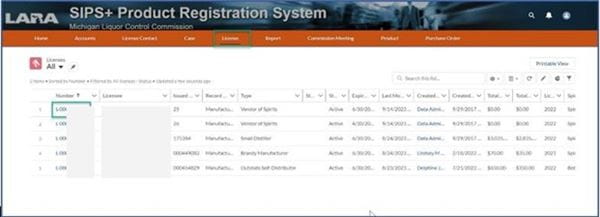
1. Click on License tab.  Once the list of licenses to which your account is linked appears, click on your Small Distiller license number.

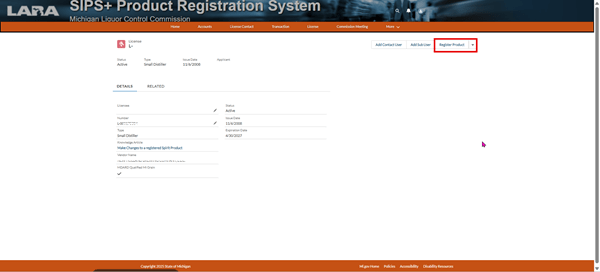
2. After selecting your license number, the license record page will open. Click Register Product button.

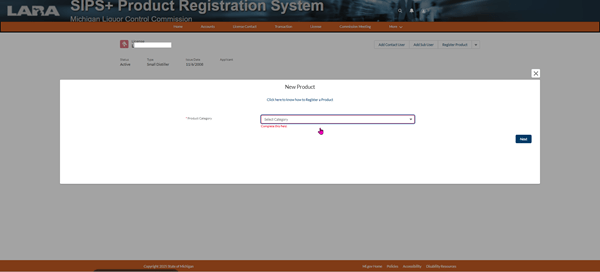
3. Select Regular Spirit Product.

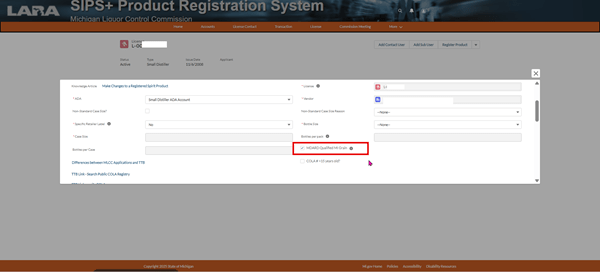
4. Fill in required fields.  Make sure to select the MDARD Qualified checkbox.  **If you are not able to check the MDARD Qualified checkbox when submitting your new product, DO NOT register your product. Contact the MLCC at lara-mlcc-sips-spirit@michigan.gov**

5. Select Submit for Approval and register product.  For detailed instructions on registering a spirits product, please view the instructional video on the SIPS+ webpage.

Editing An Existing Product to Make It MDARD Qualified

To submit a edit an existing product, log into the Sales Inventory Purchasing System (SIPS+) through MiLogin.  Instructions on how to create and log into SIPS+ may be found on the SIP+ information website.

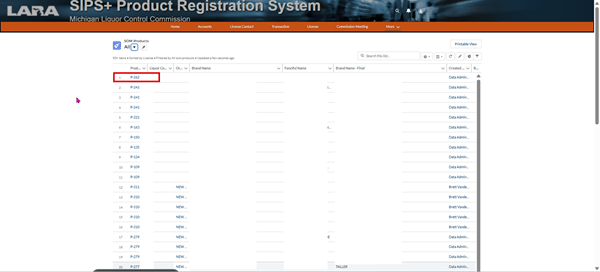
1. Click on the Product tab. If the Product tab is not appearing, select the drop down arrow next to More.  Select the product that you would like to make MDARD qualified.

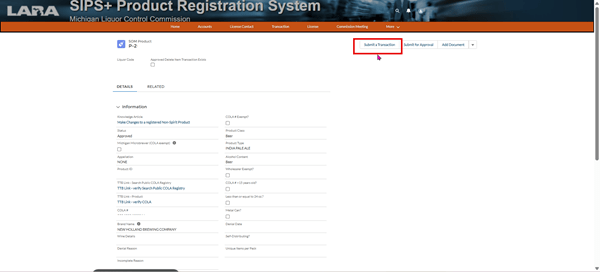
2. After selecting the product, the product detail page will open.  Select Submit a Transaction.

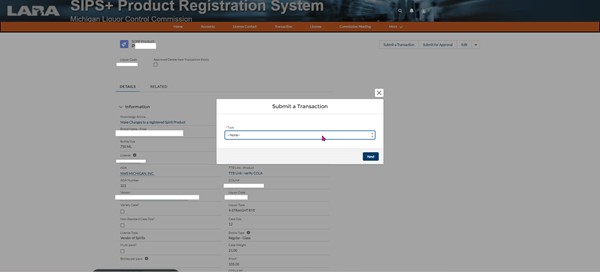
3. Select Case Cost Change from the drop down.

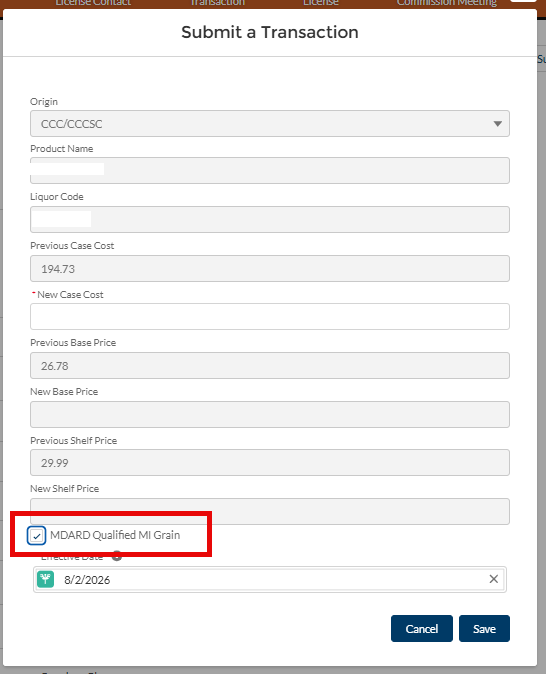
4. Enter required information. Select the MDARD Qualified checkbox.

5. Select Save and submit transaction.  For detailed instructions on submitting a spirits transaction, please view the instructional video on the SIPS+ webpage.