
Apply for an Operation CARE permit

Requirements and access

  • Applicants must contact the Michigan State Police (MSP) before applying for an Operation CARE permit.
  • MSP must validate that the applicant is eligible to participate in the event.
  • After MSP validation, applicants are directed to the MDOT Permit Gateway (MPG) to apply online.

MPG profiles and access

  • Applicants or businesses that previously obtained MDOT permits must use their existing MPG individual or business profile.
  • Do not create a duplicate profile as it can result in:
    • Cancellation of the permit application.
    • Delays in processing.
  • If unsure whether an MPG profile already exists, contact MDOT-MPG@Michigan.gov for assistance.
  • All MPG business profiles should have at least two users with full access.
  • Users may be added through the delegate‑access process following MPG delegation instructions.
Operation CARE permit application instructions

• Once the Operation CARE permit application is submitted, MDOT will begin processing the application.
• Applicants will receive an email notification when the application is approved and a permit is issued.
• For questions or assistance, applicants may contact MDOT-MPG@Michigan.gov.

Step 1 - MILOGIN for Business

Go to MiLogin for Business.

  • If a MiLogin account does not exist, follow the MiLogin new user instructions to create an account and request access to the MDOT Permit Gateway (MPG).
  • For password reset, use the “Forgot your password?” link to request a verification code.
Step 2 - Launching Permit Gateway

While signed into MiLogin, launch the MDOT Permit Gateway (MPG).

Step 3 - MPG steps

On the MPG home page:

  • Select the individual or business profile.
  • Select “Right-of-Way Construction Permit System (CPS).”
  • Click “Continue.”
Step 4 - Create a new application

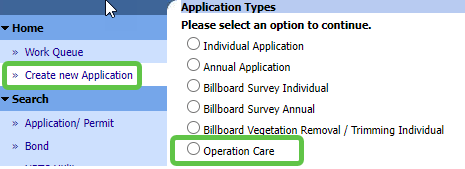
In CPS, create a new application by selecting “Create new Application” in the left‑hand navigation panel.

Step 5 - Application type

Select “Operation Care” as the application type.

The MiLogin screen showing the left navigation to "Create a new application" and then the Operation CARE radio button.

Step 6 - Complete permit application

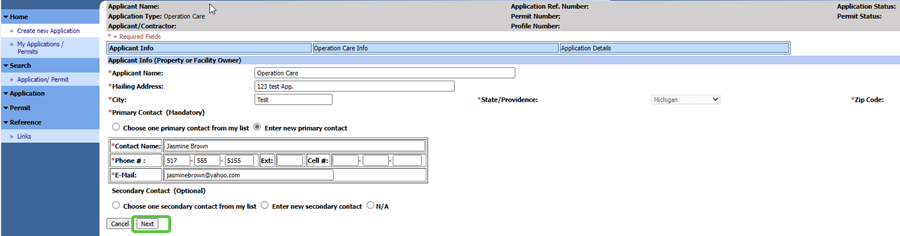
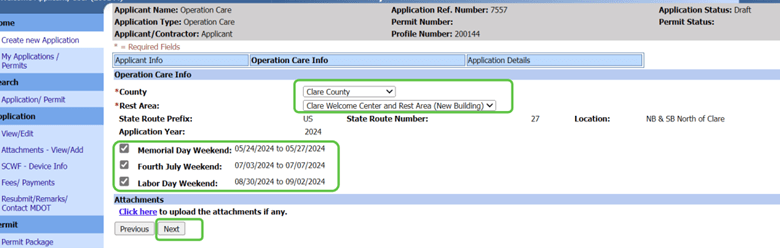
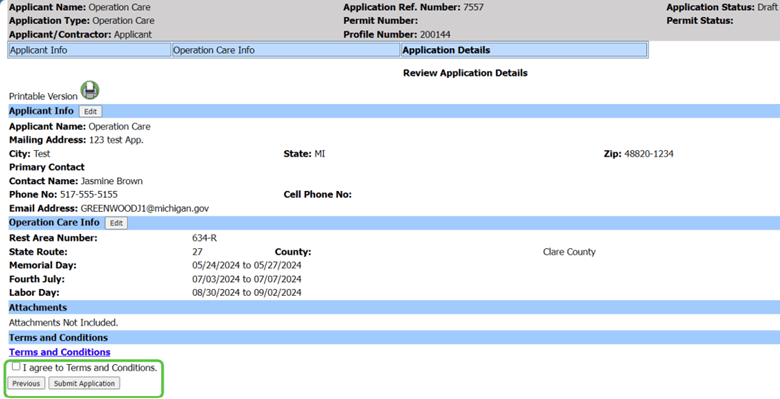
Provide all required information to complete the Operation CARE permit application.

MiLogin screen showing the new application fields and Next button.

MiLogin screen showing the Operation CARE application sections for county, rest area and application year, as well as the next button.

MiLogin screen showing the Operation CARE application terms and condition section.

MiLogin screen showing the Operation CARE permit application submitted message.