MiLogin instructions for new Operation CARE users

New user registration instructions

Applies to new business and individual users registering with MPG for an Operation CARE permit.
Steps 1 and 2 - Account creation and verification
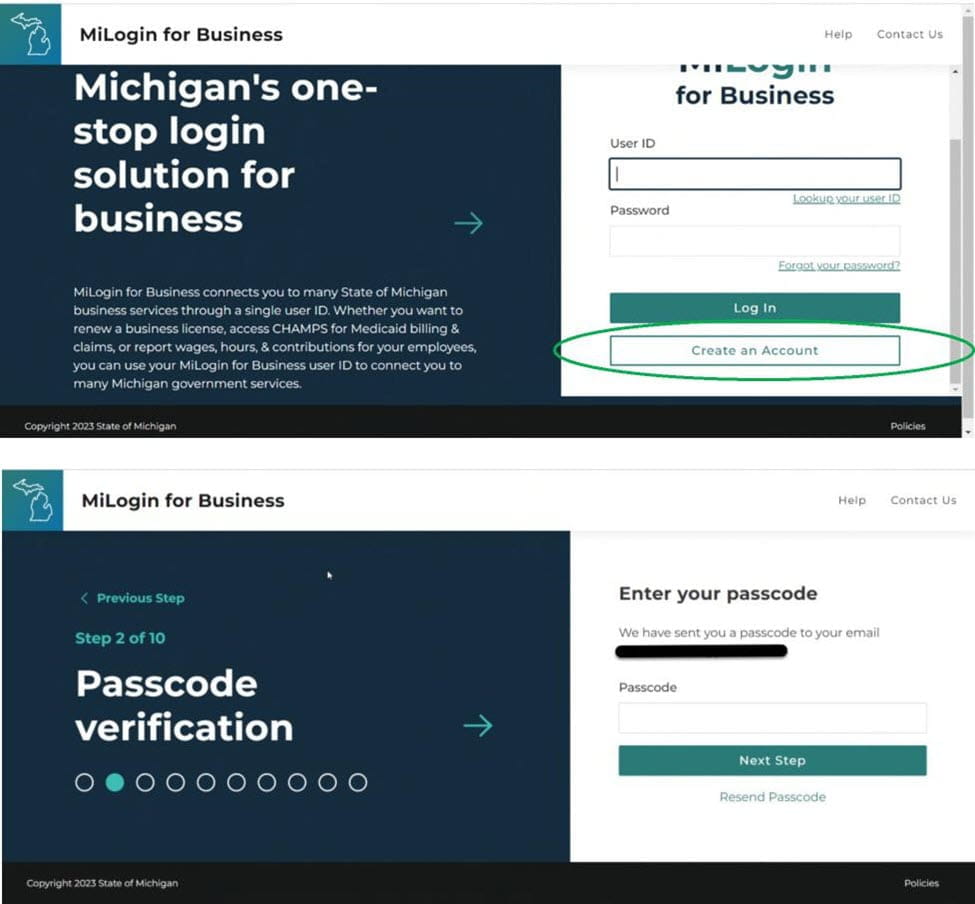
  • Click on “Create an Account” to setup a new online account, visit the MiLogin for Business page.
  • Complete the verification and profile steps 2-10.

MiLogin for Business screen showing the create an account button and then the passcode verification screen.

Steps 3 and 4 - Profile and phone verification
  • Complete MiLogin profile information.
  • Complete MiLogin work phone verification information.

MiLogin for Business screen showing the create an account button and then the passcode verification screen.

Steps 5 and 6 - Passcode and mobile phone verification
  • Complete MiLogin passcode verification.
  • Complete MiLogin mobile phone verification.

MiLogin for Business screen showing the create an account button and then the passcode verification screen.

Steps 7 and 8 - Verification method
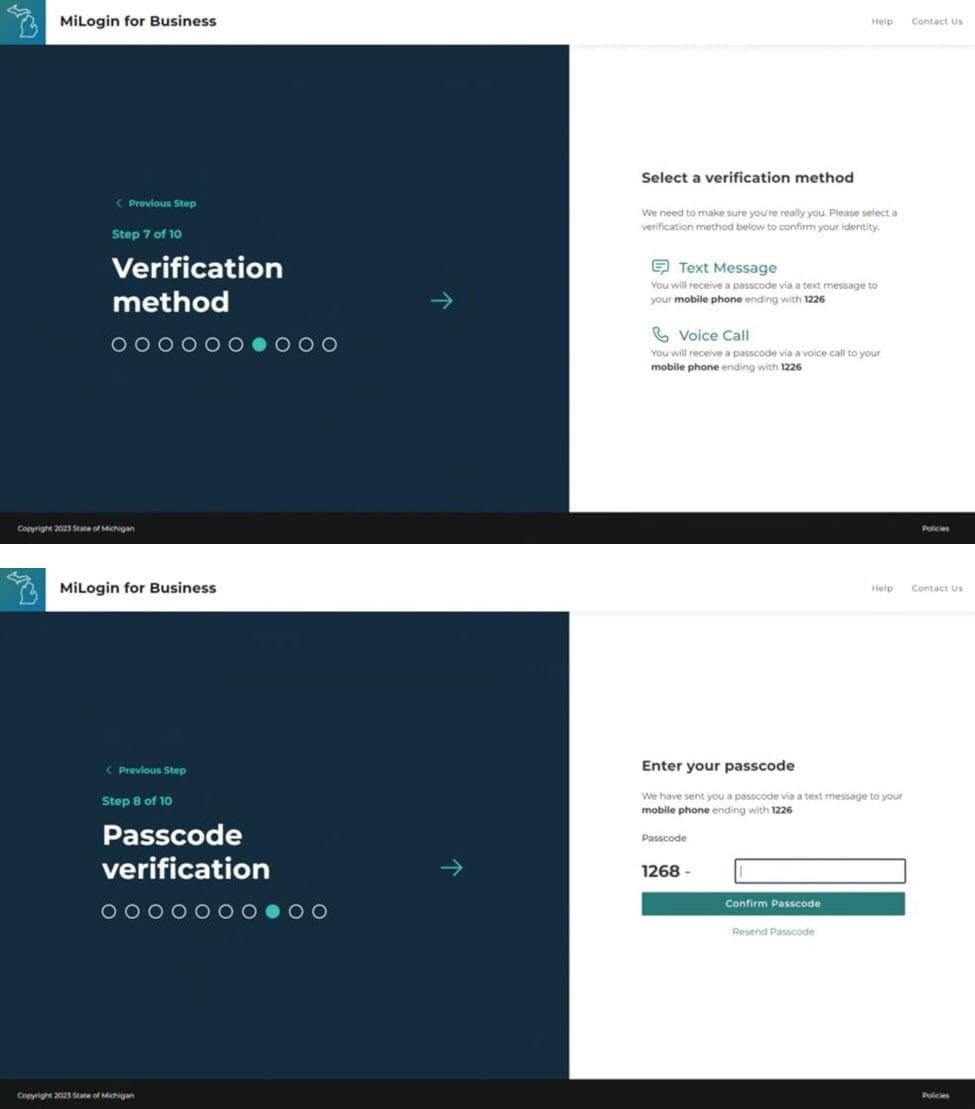
  • Complete MiLogin mobile phone verification by choosing a verification method.
  • Complete MiLogin mobile phone verification by entering in the passcode sent to your chosen method of verification.

MiLogin for Business showing verification method and passcode verification screens.

Steps 9 and 10 - User ID and password
  • Create MiLogin user ID according to guidelines.
  • Create MiLogin password according to guidelines.

MiLogin for Business screen showing the create an account button and then the passcode verification screen.

Steps 11 and 12 - MDOT Permit Gateway
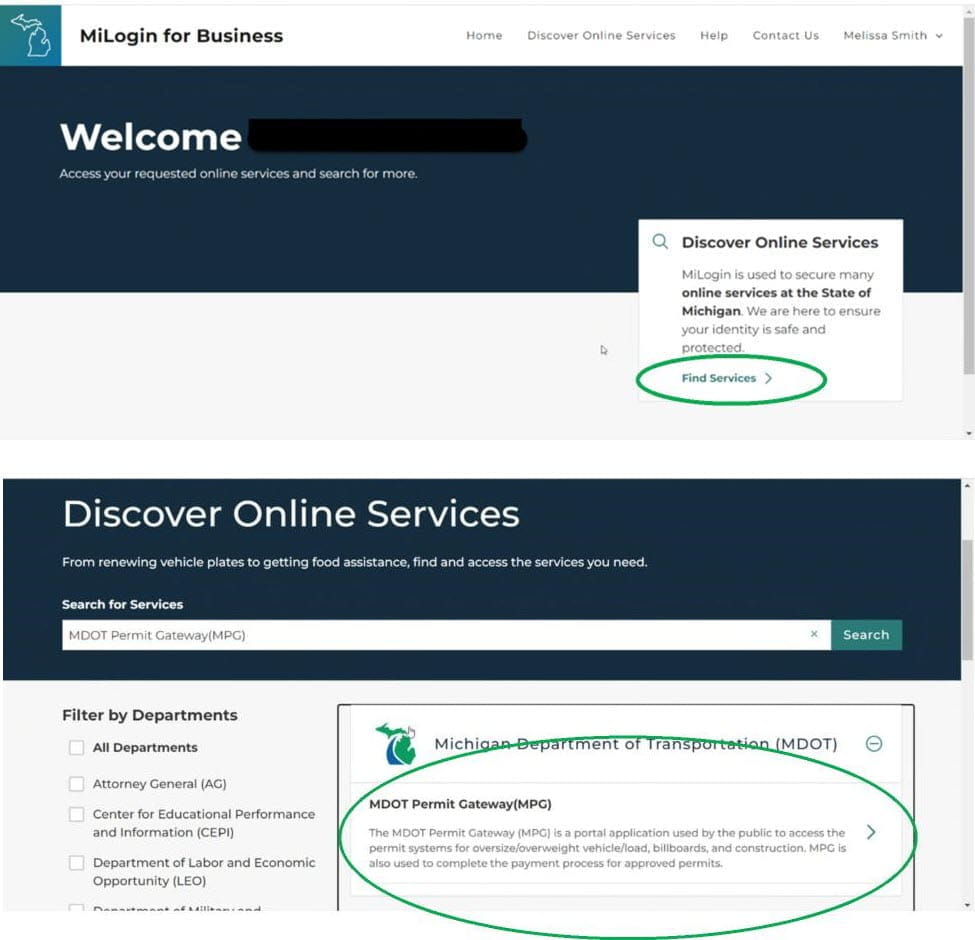
  • Click on “Find Services.”
  • Type “MDOT Permit Gateway” in the search bar. Click on “Search.” Once MDOT Permit Gateway (MPG) appears, click on the MDOT Permit Gateway (MPG) box to proceed.

MiLogin for Business showing the find services and MDOT Permit Gateway (MPG) screens.

Steps 13 and 14 - Terms and conditions
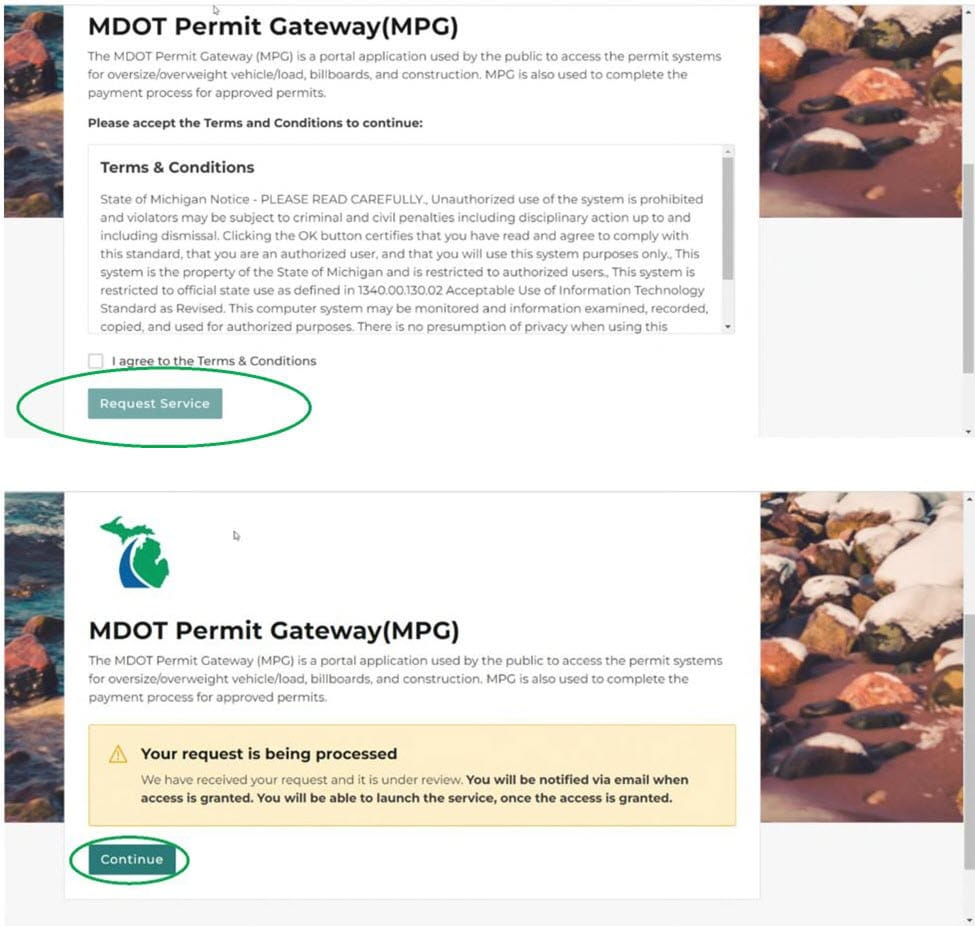
  • Click in the box next to “I Agree to Terms and Conditions,” then click on Request Service.
  • Click on “Continue;” it will take you back to the home page where you will find a link for MPG. 

MDOT Permit Gateway screening showing the terms and conditions screen and a "Your request is being processed" screen.

Steps 15 and 16 - MPG and My Profile
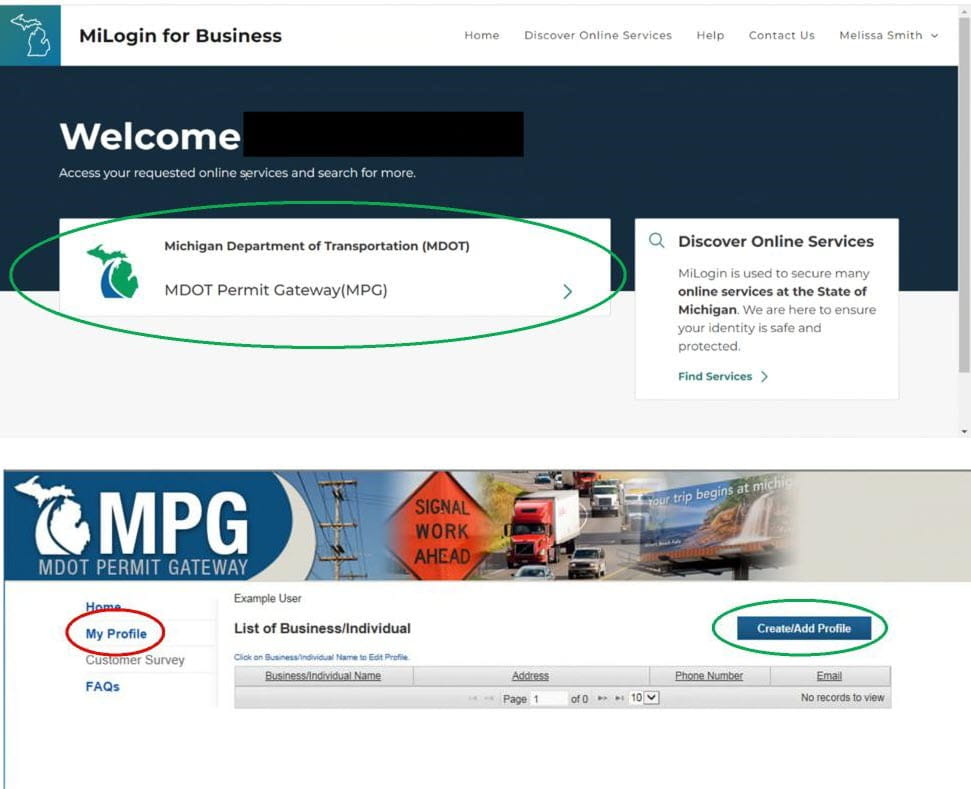
  •  Click on the MDOT Permit Gateway (MPG) link to proceed.
  •  Click on “My Profile," then click on the “Create/ Add Profile” button.
Important: Upon entering MPG, you will either need to create a profile for the individual/business or select a profile that you have been delegated access. If your business has obtained permits from MDOT in the past, you will need to be delegated access to your business's existing profile. Do not create a duplicate profile. Doing so may result in cancellation of your permit application and delay processing. If you are uncertain whether your business has an existing profile, contact MDOT-MPG@Michigan.gov for assistance.

The MILogin for Business screen with the MDOT Permit Gateway (MPG) selection and the MPG screen showing the My Profile in the left navigation.

Steps 17 and 18 - Entering your information
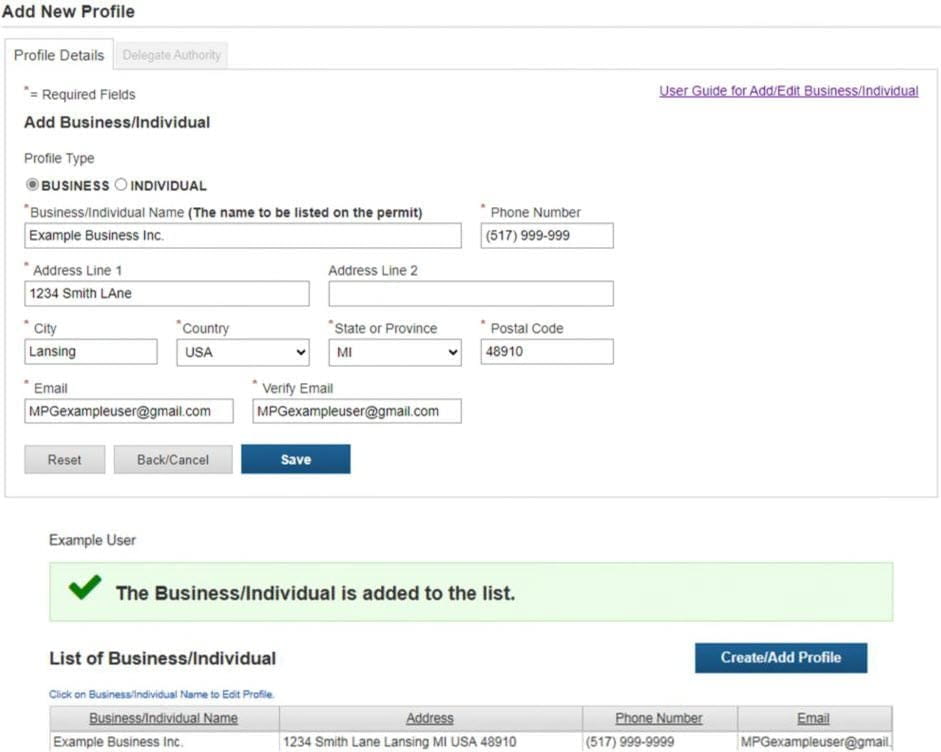
  • Enter your business or individual information (the name to be listed on the permit).
    • Confirm that the postal code field is correct before proceeding (failure to do so may result in application errors).
  • Click “Save."

The MPG add a new profile section and a success screen for adding a business or individual to the list.

Steps 19 and 20 - Select permitting system
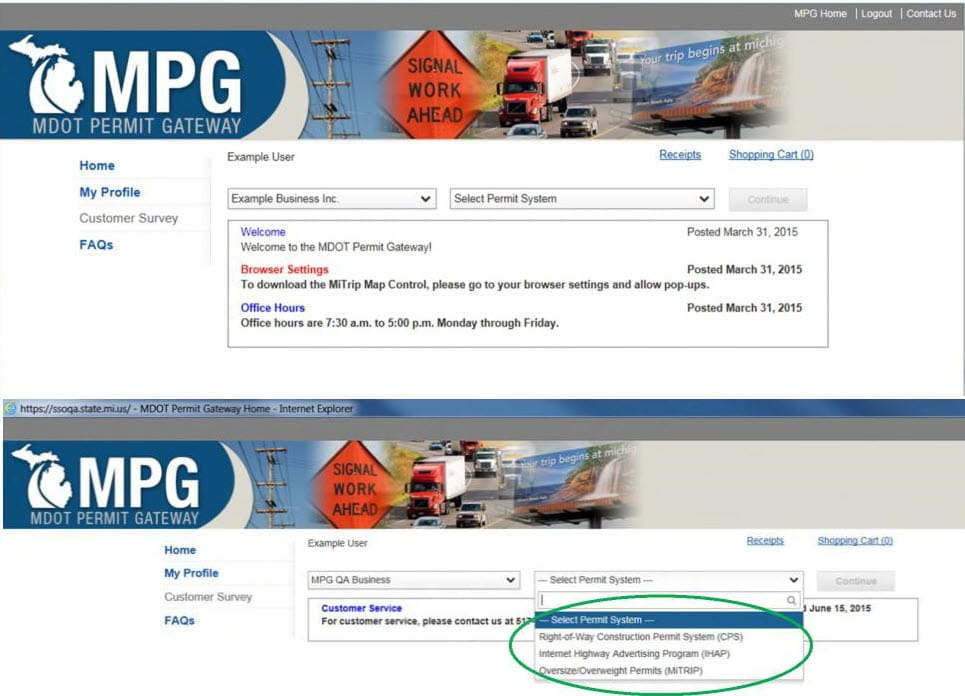
  • Click the “Home” option (left side of navigation screen). This will take you to the screen below where you can select a permit system. In the first drop down, select the Business/Individual profile you want to access.
  • In the second drop down, select the Permit System you need to access. Click on “Continue” to be directed to the selected permit system.

MPG welcome screen with the select permit system highlighted.